Key takeaways
- Pro: Includes wireless keyboard and mouse, reducing setup friction.
- Pro: Vent-Hear cooling design addresses one of the most common complaints about compact 24-inch all-in-ones.
- Con: 256GB SSD fills quickly if you store local files or install several applications.
Choosing a lenovo all in one desktop means deciding what matters most in a single-box setup: screen size, processor capability, RAM and storage configuration, and whether the included peripherals and connectivity match your daily workflow. Buyers range from someone running spreadsheets and a browser in a home office to a small business operator who needs Windows 11 Pro out of the box without a separate monitor clutter.
What separates a worthwhile Lenovo all-in-one from a disappointment is how well the internals match the price tier. Some models at similar dollar amounts carry half the RAM or a fundamentally weaker processor. Owners consistently flag thermal constraints on compact 24-inch chassis, while 27-inch configurations with newer chip generations tend to sustain performance under longer sessions. We compared published specifications, street prices, and recurring owner feedback across these eight models to identify where each one genuinely fits.
Our top picks



As an Amazon Associate we earn from qualifying purchases at no extra cost to you.
Quick Picks
| Product | Best for | Price |
|---|---|---|
| Lenovo 24″ Business AIO | Office productivity on a budget | $579.99 |
| Lenovo IdeaCentre 24″ (N100) | Light everyday computing | $599.98 |
| Lenovo IdeaCentre 27″ i7 | Power users who need a big screen | $999.99 |
| Lenovo ThinkCentre 27″ i5 | Small business desks | $874 |
| Lenovo AIO 4-Core 24″ | Minimum-cost Windows 11 Pro | $539.99 |
| Lenovo IdeaCentre 24″ 512GB | Storage-constrained budget buyers | $599.93 |
| Lenovo IdeaCentre 27″ Touch | Touchscreen convenience with a large drive | $962 |
| Lenovo AIO White 23.8″ | Clean aesthetic, simple tasks | $549.99 |
How We Picked
We evaluated each model on four criteria: processor and memory configuration relative to price, display quality and size, connectivity (ports and wireless standards), and what owners report about long-term usability and noise or heat. A model only earns a spot when its strengths clearly serve a specific buyer scenario rather than being a watered-down version of a better option at a similar cost.
The 8 Best Lenovo All In One Desktop in 2026
Lenovo 24″ Business AIO
This model targets office users who need Windows 11 Pro without paying a premium. The 16GB RAM paired with a 256GB PCIe SSD handles multitasking across browser tabs, email, and document suites comfortably. HDMI output lets you extend to a secondary display, while WiFi 6 and Bluetooth 5.2 cover modern peripheral needs.
- Pro: Includes wireless keyboard and mouse, reducing setup friction.
- Pro: Vent-Hear cooling design addresses one of the most common complaints about compact 24-inch all-in-ones.
- Con: 256GB SSD fills quickly if you store local files or install several applications.
Skip this if your workload involves photo editing or video rendering—the integrated Intel processor is not designed for sustained compute-heavy tasks.
Lenovo IdeaCentre 24″ (N100)
Built for casual users who browse, stream, and handle light productivity. The Intel N100 is a low-power chip, so this machine prioritizes quiet operation over raw speed. Owners appreciate the silent fan under normal loads.
- Pro: Energy-efficient, generates minimal heat and noise during typical use.
- Pro: FHD 24-inch panel is sharp enough for document work and HD video.
- Con: The N100 struggles with heavier multitasking or browser sessions with many memory-intensive tabs.
Skip this if you open more than a dozen applications simultaneously or plan to run any creative software.
Lenovo IdeaCentre 27″ i7
The highest-performance option here. A 10-core Intel i7-13620H, 16GB DDR5, and 512GB SSD make this capable of demanding workloads. The 27-inch screen provides real estate for split-window multitasking, and HDMI in allows the display to function as an external monitor for a laptop or console.
- Pro: Processor headroom suits virtualization, compiling, or light video editing.
- Pro: HDMI in is a rare and practical feature in this price bracket.
- Con: Ships with wired keyboard and mouse, which feels dated for a nearly $1,000 machine.
Skip this if your budget is firm under $800; the ThinkCentre below delivers most of the same functionality for less.
Lenovo ThinkCentre 27″ i5
Aiming at small businesses that want a reliable, serviceable design. The 8-core i5-13420H and 16GB DDR5 configuration handles accounting software, CRM dashboards, and multi-tab research without hesitation. The IPS panel ensures consistent color and viewing angles across a shared desk area.
- Pro: ThinkCentre build quality typically means better long-term serviceability and support.
- Pro: HDMI in and out provide flexible display options for dual-screen or external-output scenarios.
- Con: Wired peripherals included; you may want to budget extra for a wireless set.
Skip this if you need more than 512GB of internal storage or run processor-heavy applications daily.
Lenovo AIO 4-Core 24″
The cheapest way to get Windows 11 Pro on a 24-inch Lenovo all-in-one. With 8GB DDR4 and a 256GB PCIe SSD, it handles basic office tasks. Ethernet port presence is a plus in environments where WiFi is congested or unreliable.
- Pro: Lowest price point while still offering a business-grade OS and a full HD display.
- Pro: Includes Ethernet, USB ports, and HDMI—solid connectivity for a budget machine.
- Con: 8GB RAM limits multitasking; owners report slowdowns with 10+ browser tabs open.
Skip this if you cannot upgrade RAM later; the 8GB ceiling will feel restrictive within a year for most workflows.
Lenovo IdeaCentre 24″ 512GB
Identical in price to the N100 model but doubles the storage to 512GB while keeping 16GB RAM. This suits users who install many programs or keep local project files but do not need maximum CPU throughput.
- Pro: Double the storage of similarly priced competitors without a cost increase.
- Pro: 16GB RAM provides comfortable headroom for everyday multitasking.
- Con: The exact processor model is not listed in available specs, making it harder to gauge sustained performance.
Skip this if processor clarity matters to your buying decision; the ThinkCentre or 27-inch IdeaCentre leave no ambiguity on that front.
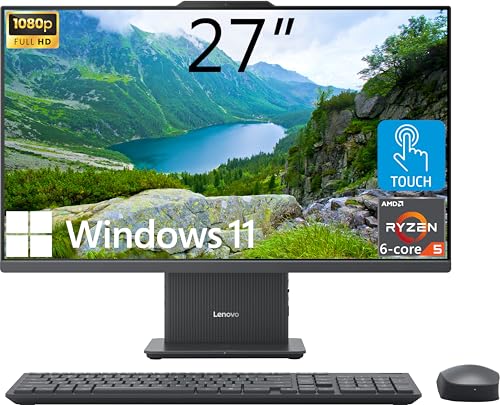
Lenovo IdeaCentre 27″ Touch
The only touchscreen in this lineup, powered by a 6-core AMD Ryzen 5 8645HS and 16GB DDR5. The 1TB SSD is the largest here, and a wireless charging base adds convenience for a phone or earbuds at your desk.
- Pro: 1TB storage eliminates the drive-space anxiety common in other models at similar prices.
- Pro: Touchscreen with HDMI in transforms the display into an interactive second monitor for compatible devices.
- Con: Ships with Windows 11 Home, not Pro—relevant if you need BitLocker or domain join natively.
Skip this if your IT environment requires Windows 11 Pro or BitLocker encryption out of the box.
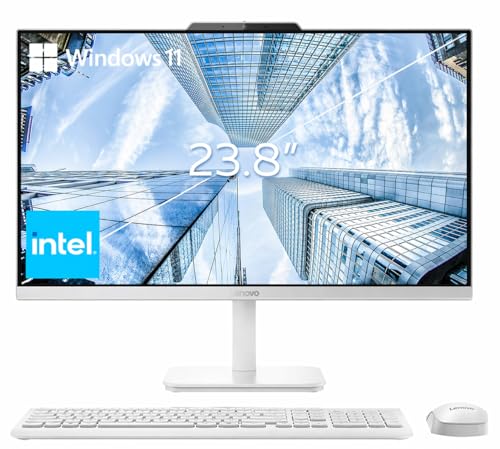
Lenovo AIO White 23.8″
A visually distinct option in a white finish, targeting users who want a clean setup for a counter, clinic, or shared workspace. The 23.8-inch IPS FHD panel offers decent color accuracy. Intel UHD Graphics handles video playback and basic UI rendering without complaint.
- Pro: White chassis and IPS panel make it a better fit for customer-facing or design-conscious spaces.
- Pro: 512GB SSD at under $550 is a strong storage-to-price ratio for this tier.
- Con: 8GB DDR4 is the same bottleneck as the cheapest model—expect limitations under heavy multitasking.
Skip this if performance matters more than appearance; the 16GB models at $60 provide a noticeably better experience for marginal extra cost.
Buying Guide
RAM and Storage: The Budget Trap
Several models cluster around $550 with 8GB of RAM, which creates a hidden upgrade deadline. Owners of 8GB configurations consistently report the system becoming sluggish after installing Windows updates and one or two productivity suites. If you can stretch to $600, you unlock 16GB machines that remain comfortable for three or four years without intervention. On the storage side, 256GB SSDs fill fast with Windows updates alone; 512GB is the practical minimum for anyone who installs more than five applications.
Processor Tier: Know Your Ceiling
Lenovo’s all-in-one lineup spans from the low-power Intel N100 to the 10-core i7-13620H and AMD Ryzen 5 8645HS. The N100 is fine for a single-user browsing machine but falls apart under any sustained load. The 4-core Intel options sit in a middle zone that handles office software but not creative work. The i7 and Ryzen 5 chips are the only ones in this group that genuinely support video calls with screen sharing, large spreadsheets, and light editing simultaneously.
Display and Connectivity: The Underrated Differentiators
27-inch FHD panels provide roughly 30 percent more usable screen area than 24-inch models, which directly affects how many windows you keep open without switching. HDMI in is a spec that appears only on higher-tier models and lets the all-in-one’s display serve as a monitor for another device—useful in shared offices. Wireless keyboard and mouse inclusion saves $30 to $50 that you would otherwise spend separately, though this varies by model.
Our Verdict
The Lenovo 27″ i7 IdeaCentre is the overall best lenovo all in one desktop in this group, combining a 10-core processor, DDR5 memory, HDMI in, and a large display for the widest range of serious workloads. For budget buyers, the Lenovo 24″ Business AIO at $579.99 offers 16GB RAM, wireless peripherals, and WiFi 6 in a package that covers office productivity without compromise. However, if you need maximum storage and a touchscreen for an interactive setup, the 27″ Touch IdeaCentre with its 1TB drive wins that specific use case despite running Windows 11 Home.
FAQ
Are Lenovo all-in-one desktops good for gaming?
Most models in this lineup use integrated Intel UHD graphics, which handle only very light or older titles at low settings. The i7-13620H and Ryzen 5 8645HS models offer the best chance of running esports titles at 1080p, but none include a dedicated GPU. Gaming is not a primary use case for any of these configurations.
Can I upgrade the RAM or SSD later?
Upgrading is possible on some models but often difficult due to the sealed chassis design typical of all-in-ones. Accessing internal components usually requires removing the display panel, which may void warranty. Buyers should prioritize getting adequate RAM and storage at purchase rather than planning a future upgrade.
What is HDMI in and why does it matter?
HDMI in allows the all-in-one’s display to receive a signal from an external source, such as a laptop, game console, or media player. This effectively turns the monitor into a standalone display without needing to boot the desktop. Few all-in-one models include this feature, so it is a meaningful differentiator when comparing options at similar prices.
Is Windows 11 Home sufficient for business use?
Windows 11 Home lacks domain join, BitLocker encryption, and Remote Desktop hosting—features that many small business IT environments require. If your setup involves centralized management, encrypted drives, or remote access, choose a model with Windows 11 Pro or plan to purchase the Pro upgrade separately.